Step 4: Make It Run Itself
Release notes change every sprint; nobody should have to remember to republish them.
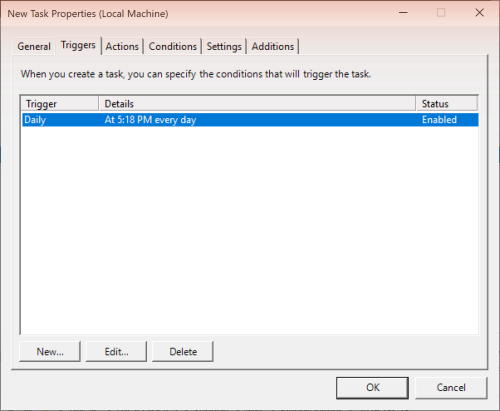
Select Quantum Sync Release Notes and choose Job > Schedule Job. The Windows scheduled-task properties open for this job (the window is titled New Task Properties).
On the Triggers tab, click New.... In New Trigger, keep Begin the task on On a schedule, select Daily, set a start time, and click OK; then click OK to close the task properties.
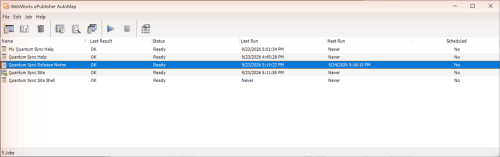
Back in the job list, Scheduled reads Yes and Next Run shows the next time. To see it run now, choose Job > Run; when it finishes, Last Run shows the time and Last Result reads OK.
Can't leave a recurring schedule in place? Skip the trigger and use Job > Run whenever the release notes change; the result is the same publication, run by hand.