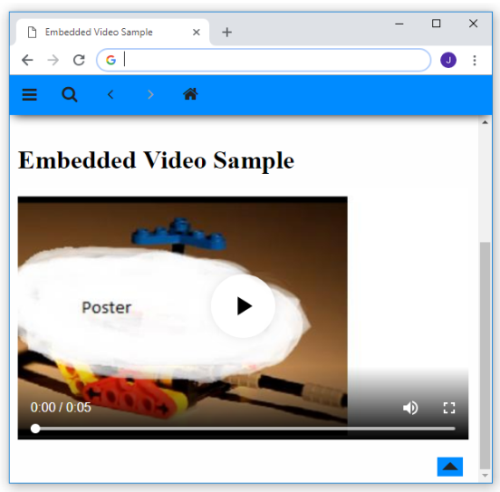
Working with Videos in FrameMaker
Occasionally, writers include videos when producing documents using Adobe FrameMaker.
Note: If the video is not found, ensure the correct path to the video is specified in the FrameMaker document.
To include a video in an Adobe FrameMaker source document
In your Adobe FrameMaker source document, click on File from the tool bar, select Import File, then a dialog box will appear.
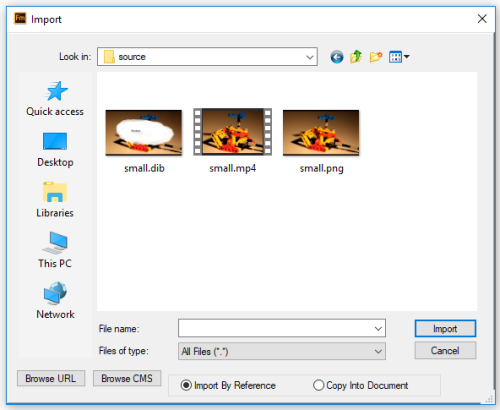
Locate the video file in the dialog box.
Select the video file, click the import button.
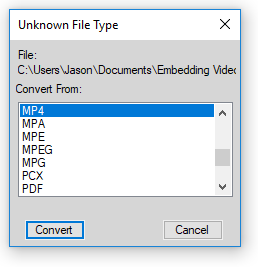
Select which file type to convert from. This example uses an MP4 formatted video selected, so MP4 format should be selected in the dialog.
Select the Imported Graphic Scaling. For this example 72 dpi was used. After making the selection, the video will appear in the FrameMaker document.
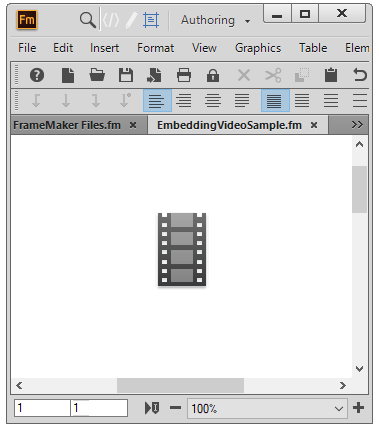
Add a poster image to the video file. This step is optional.
Click on File, then select Import File. Select the image to use as the poster file image.
Click the Replace button.
Select the Imported Graphic Scaling. 72 dpi was used in the example.
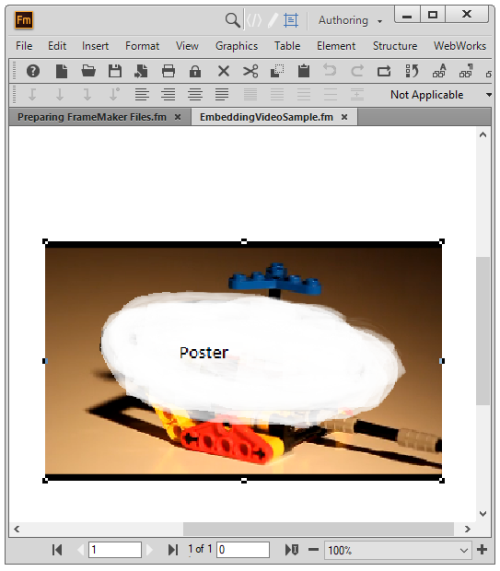
Position the video with your mouse.
Save the File
Add the document to your Reverb 2.0 project and generate.