Using Custom Icons on the Contents Tab in WebWorks Help
When you navigate through the table of contents on the Contents tab, you can see two types of icons for entries that have subentries. The open book icons (fo.gif) represent expanded table of contents levels, and the closed book icons (fc.gif) represent unexpanded table of contents levels, as shown in the following figure.
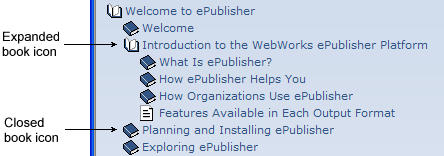
These icons are .gif images stored in the WebWorks Help theme folder. You can create override files for the fo.gif and fc.gif files to replace these files and use your own custom table of content icons instead.
To replace the book icons used on the Contents tab
Identify the theme in use for your WebWorks Help target that you want to modify. For more information, see Selecting a Theme.
In your Stationery design project, on the View menu, click Project Directory. For more information about override files and locations, see Stationery, Projects, and Overrides.
If you want to override the images for all WebWorks Help targets, create the
WebWorks Help 5.0\Skins\<theme>\Files\wwhelp\wwhimpl\common\imagesfolder in your<projectname>\Formatsfolder, where theme is the name of the WebWorks Help theme you want to override, such as Lobby_Blue, and projectname is the name of your ePublisher project. If the theme name is two words, include an underscore instead of a space between the words.If you want to override the images for one WebWorks Help target, create the
WebWorks Help 5.0\Skins\<theme>\Files\wwhelp\wwhimpl\common\imagesfolder in your<projectname>\Targetsfolder, where theme is the name of the WebWorks Help theme you want to override, such as Lobby_Blue, and projectname is the name of your ePublisher project. If the theme name is two words, include an underscore instead of a space between the words.Copy the
fo.gifandfc.giffiles from the following folder to the images override folder you created within your project folder:Program Files\WebWorks\ePublisher Designer\Formats\WebWorks Help 5.0\Skins\<theme>\Files\wwhelp\wwhimpl\common\imagesOpen the
fo.gifandfc.giffiles you copied to your project override folder and modify these files to be the book icons you want to use.Save and close the
fo.gifandfc.giffiles.Regenerate your project to review the changes.