Exploring the ePublisher Designer User Interface
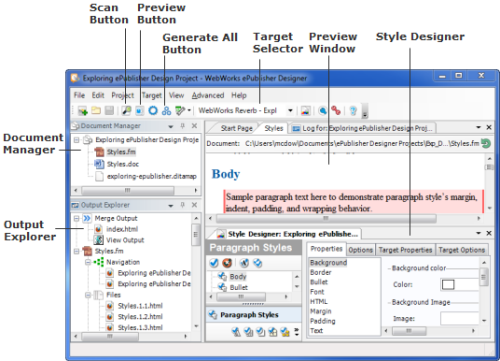
The ePublisher Designer user interface includes the following windows:
Start page. For more information, see Understanding the Start Page.
Document Manager. For more information, see Understanding Document Manager.
Output Explorer. For more information, see Understanding Output Explorer.
Log Window. For more information, see Understanding the Log Window.
Style Designer. For more information, see Understanding Style Designer.
Preview window. For more information, see Understanding the Preview Window.
The following figure shows the ePublisher Designer user interface.
Opening ePublisher Express Projects in ePublisher Designer
Since 2026.1, the Open command in ePublisher Designer lists both ePublisher Designer projects (.wep files) and ePublisher Express projects (.wrp files) under a single ePublisher Project Files entry, so a Stationery designer can open a writer's project directly.
An ePublisher Express project opened in ePublisher Designer behaves as it does in ePublisher Express. It carries the Express icon, generates and deploys output, and prompts to synchronize with its Stationery when that Stationery changes. Style Designer and the Preview window are not offered for it, because those tools act on a Stationery design project.
Two commands on the ePublisher Designer File menu serve this arrangement:
New Project from Stationery... creates an ePublisher Express project from Stationery, or from an ePublisher Designer project, without leaving ePublisher Designer. It sits directly below New Project, which in ePublisher Designer creates a Stationery design project. For more information, see Creating Projects Based on Stationery.
Save as Express Project... creates an ePublisher Express project linked to the ePublisher Designer project you have open, so colleagues can work in projects that pick up your design through the ordinary synchronization prompt. It sits directly below Save as Stationery. For more information, see Creating a Linked Project from a Design Project.