Understanding Style Designer
Style Designer allows you to modify how various styles appear in your generated output. You can define how paragraphs, characters, tables, and images are displayed. You can also modify other aspects of your content, such as page layout and how page breaks are established. Style Designer defines the appearance of your online content, such as the color or font of a paragraph style, the style of a table border, the layout of a page, and the file format of your images in your generated output.
ePublisher uses the styles in your source documents to define how to transform and present your content online. ePublisher intelligently senses the styles in the source documents and presents a list of these styles in Style Designer. You can then define your generated output by specifying properties and options for each style. By using styles in your source documents, you have great control over your output. In Style Designer, the Properties tab controls the appearance of the selected style and the Options tab controls the behavior of the selected style in your generated output.
For example, if you are using a style called Heading 1 in your source document, ePublisher lists this style in your project with the other styles used in your source documents. If you select Heading 1 from the list of styles in Style Designer, you can then define all content that has that style to appear a specific way in your generated output. These modifications do not affect your source documents. ePublisher is essentially a filter that transforms your source documents into the output format you need.
You can work on one style at a time, or select several styles and set a value for all of them at once. For more information, see Editing Several Styles at Once.
You can also use a custom CSS file to modify the appearance of your content instead of using Style Designer for HTML-based output formats. For more information, see Using a Custom CSS to Modify the Appearance of Content.
Modifying Output with CSS Properties and Attributes
Cascading style sheet (CSS) properties give you detailed control over the appearance of your generated output. Style Designer provides an intuitive interface to help you modify your output using CSS properties. In addition to the online help, additional knowledge of CSS properties and attributes can help you achieve the results you want. For more information about CSS principals, see W3 Schools at www.w3schools.com and the World Wide Web Consortium (W3C) at www.w3.org.
Because your online output is HTML- and CSS-based, the appearance of your output can be inconsistent between different browsers. This inconsistency is a limitation of HTML and CSS, since not all browsers implement the standards defined by the W3C in a consistent way. In addition, some output formats do not support all HTML and CSS features. In these cases, ePublisher disables or hides the incompatible options.
Understanding the CSS Box Model
In accordance with the CSS2 specification, each element on a Web page generates its own invisible, rectangular box, sometimes referred to as the box model. This box delimits the space that the element occupies on the page and consists of a content area surrounded by optional blocks related to the border, margin, or padding around the content. For example, consider the following HTML snippet of a paragraph on a Web page:
<p>That's one small step for a man, one giant leap for mankind.</p>Since this content is a paragraph, the text uses a <p> tag and is contained in a P box, or paragraph box. Assuming this paragraph has only a margin applied to it (and no border or padding), its box can be represented as shown in the following figure:
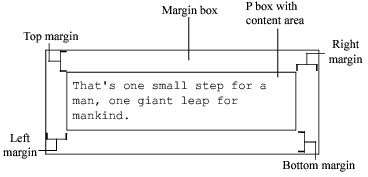
Other paragraph blocks, heading blocks, table blocks, and so forth may precede or follow this paragraph, and all blocks fit together inside a page block, which contains all other elements of the page. Boxes usually correspond to HTML <h>, <p>, or <div> tags and often contain inline elements within them. Inline formatting, such as a bold word within a sentence, creates inline invisible boxes within the paragraph text.
For Western languages, the boxes, and therefore the content within them, are arranged in a left-to-right, top-to-bottom flow, which is called normal flow. You can reverse normal flow for Eastern languages that flow from right to left. The normal flow includes all styles unless you move them outside of the normal flow using the Float or Positioning properties. With the Float or Positioning properties, you can create multi-column pages and other layouts that, in CSS1, required you to use tables. For more information about the CSS2 visual formatting model and normal flow, see the W3C documentation at www.w3.org/TR/REC-CSS2/visuren.html.
Inheriting Style Properties and Options
Many elements of your online design may have similar properties or options. For example, paragraphs, bulleted list items, and numbered list items may all use the same font and vertical spacing. You may also identify elements that should use settings from your source documents. For example, you may want tables to use the size defined in your source files. Style Designer allows you to specify a precise value for a property, or you can specify from where a property inherits its value. When using inheritance for properties, you can specify the source of the inheritance using the following values:
Explicit
Ignores all inheritance values and uses the value you specify for this property.
Do not emit
Excludes the property from the generated output for the selected style. This option can help you troubleshoot a design issue and determine which property or element is associated with the issue.
Inherit from style
Inherits the value for the property from the parent style. You can organize styles in a hierarchy and then use inherited properties to reduce maintenance costs for future changes. For example, if you have a Heading 1 and a Heading 2 style, you could make Heading 2 a child of Heading 1. If you select Inherit <style name or target> property for a property of Heading 2, it inherits the value for that property from Heading 1. For more information, see Organizing and Managing Styles.
Document paragraph style
Inherits the value for the property from the style definition in your source document. By choosing this option for a property, ePublisher uses the formatting from your source document for that property.
Document style catalog
Inherits the value for the property from the style definition in the source documents. When you select this option for a property, ePublisher uses the source document definition and ignores all manual changes made to the style in the source document.
Understanding Options in Style Designer
The Options tab allows you to define the behavior of the selected item in Style Designer. For example, you can set the options for a paragraph style to create an expand/collapse section or to split the content and start a new output file. The available options depend on the selected item, such as a paragraph style or a marker style, and the active target, such as WebWorks Help or Eclipse Help.
Note: The options you specify for a parent style can be inherited by child styles if the child style does not explicitly set the option value.