Scanning Source Documents
This section explains how scanning works, how to scan source documents, and source document scanning options.
Scanning and Scanning Options
When ePublisher scans your source documents, it reads the style and formatting information, variables, conditions, and marker types in your source documents and then imports this information into your ePublisher project. Once ePublisher imports this information into your project, you can generate output. You can also modify target settings if you have permissions to modify target settings. For more information, see Generating and Regenerating Output and Working with Target Settings.
The scanning process can be time-consuming. You can reduce the amount of time it takes ePublisher to scan your documents by scanning only the source documents you select. Scan your source documents when you have made any of the following changes to your source documents:
Added new content
Added new style information
Modified any existing styles
Added new markers, variables, or conditions
Modified existing markers, variables, or conditions
ePublisher provides the following options for scanning source documents in Document Manager:
Scan Selected
Scans only the selected source document in Document Manager.
Scan All Documents
Scans all of the source documents that you added to your project and that are displayed in Document Manager.
Setting Scanning Options
By default, ePublisher will automatically scan your documents, thus making sure any new styles, conditions, variables, etc. are added to your project.
If you set this option to Ask, then adding a source document a dialog box will appear:
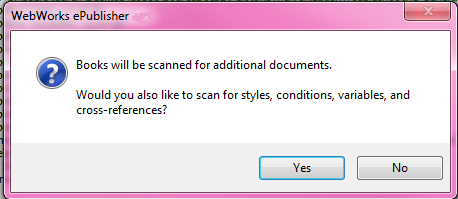
This indicates that files such as FrameMaker .book files will scan for additional .fm files linked from this source. Clicking Yes will scan the individual documents so that the document set styles, for example can be added to the Style Designer (the same goes for most of the document set customizations.)
However, you can specify that you want ePublisher to scan source documents when you add them to your project. For example, you can choose to have ePublisher prompt you to scan the source documents when you add source documents to your project, or you can choose to always have ePublisher scan source documents when you add them to a project. The scanning option you specify will become the default selection for all existing and subsequent projects.
If you choose to never have ePublisher scan source documents, when you add them to a project, you must remember to scan your source documents before you generate output.
To set scanning options
On the Edit menu, click Preferences.
On the General tab, in the Scan options area, select the scan setting you want to specify. For more information about scanning options, click Help.
Click OK.
Scanning Selected Documents
Sometimes you may make a change to content in a single source document. You can scan only the source document you changed. Scanning the selected document updates your project with the new information you specified in the selected source document.
To scan a selected source document
In Document Manager, select the source document you want to scan.
On the Project menu, click Scan Selected. ePublisher scans the document you selected in Document Manager.
Scanning All Documents
If you have made multiple changes to content in your source documents, you can scan all of the source documents included in your project at once. Scanning all source documents ensures that ePublisher includes any changes you made to any of the source documents in your project.
To scan all source documents in a project
On the Project menu, click Scan All Documents. ePublisher scans all of the source documents displayed in Document Manager.